

Troubleshooting — messages and the log
Read the status line first
Most pages say what went wrong on their status line, in red, in words you can act on.
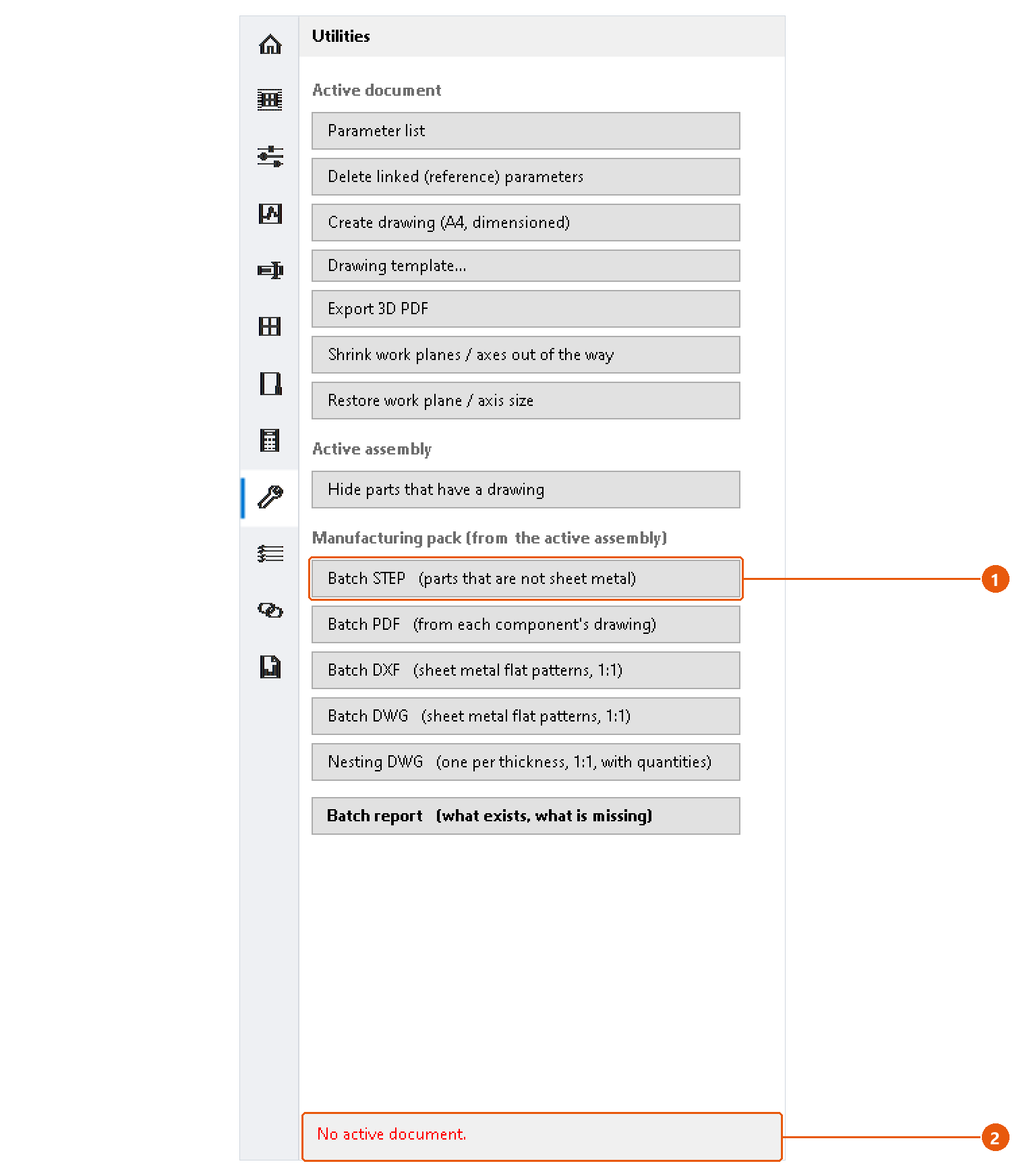
Here Batch STEP 1 was pressed with no document open, and the status line 2 says so. The messages you will meet most often:
| Message | What to do |
|---|---|
| No active document. | Open the part or assembly first. |
| Open an assembly first. | The tool works inside an assembly. Open one and make it the active document. |
| Select a component in the assembly. | Select the component in the browser or the graphics window, then press the button again. |
| Save the assembly first — the pack is written beside it. | Save the assembly once; the manufacturing pack goes into a folder next to it. |
| This component is grounded. Unground it first, or it cannot be constrained. | Unground the component in the browser. |
Settings are not remembered
InvAmp writes to %APPDATA%\InvAmp\settings.ini. When the file cannot be written, InvAmp says so in a message that names the file. Your changes then last only until Inventor closes. A file sync client or an antivirus holding the file open is the usual cause.
Nesting skipped a part
The part probably has no flat pattern. Run Assembly Tools → Check → Sheet metal; it lists exactly those parts.
Send us the log
- Open Home → Settings → Support and press Open log folder.
- E-mail the newest file from that folder to info@invamp.net, with the add-in version from Home → Environment.
If a problem leaves nothing in the log, tick Also record what ran, not only what failed, repeat what you did, and send the log again.
Tip:New versions, videos and this help are on invamp.net.