

Design Report
Design Report runs a set of design checks over the open assembly, lets you work through the issues, and writes them to a PDF with an ISO 7200 title block.
Run the report
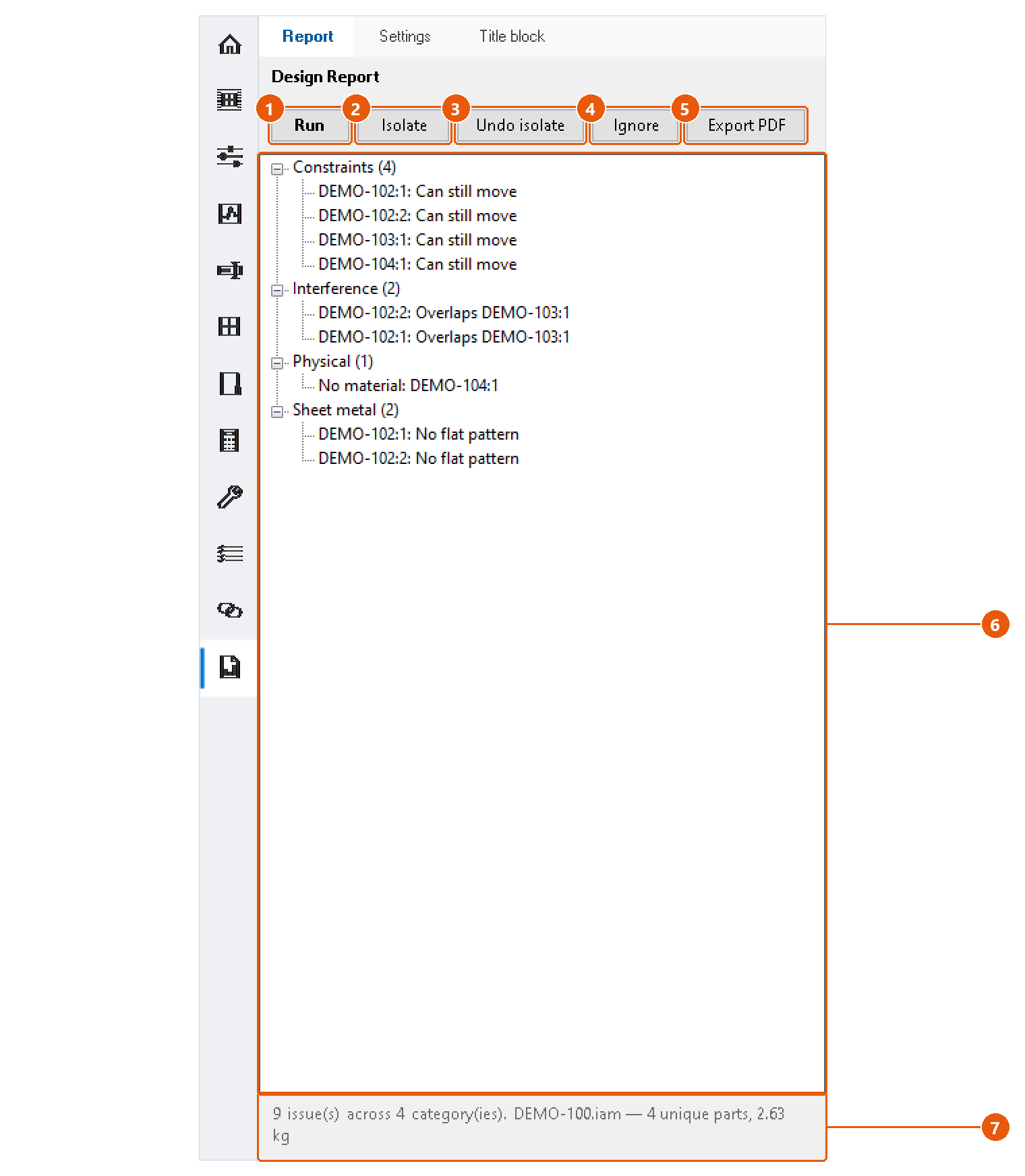
- Open the assembly and click Design Report in the icon bar, then the Report tab.
- Press Run 1.
- Read the issues 6. They are grouped by category, with the number of issues in brackets.
- The status line 7 gives the issue and category count, the assembly name, the number of unique parts and the total mass.
Work through the issues
- Double-click an issue to zoom to its components.
- Select an issue and press Isolate 2 to show only its components. Undo isolate 3 brings the rest back.
- Select an issue and press Ignore 4 to remove it. It stays out of later runs and the PDF while Inventor is open.
Export the PDF
Press Export PDF 5. The first time, choose the folder the reports go to.
The PDF is named <assembly>_DesignReport_<date>_<time>.pdf and opens when it is written. It has an isometric view of the assembly on the cover, your logo, and the title block on every page.
Report settings
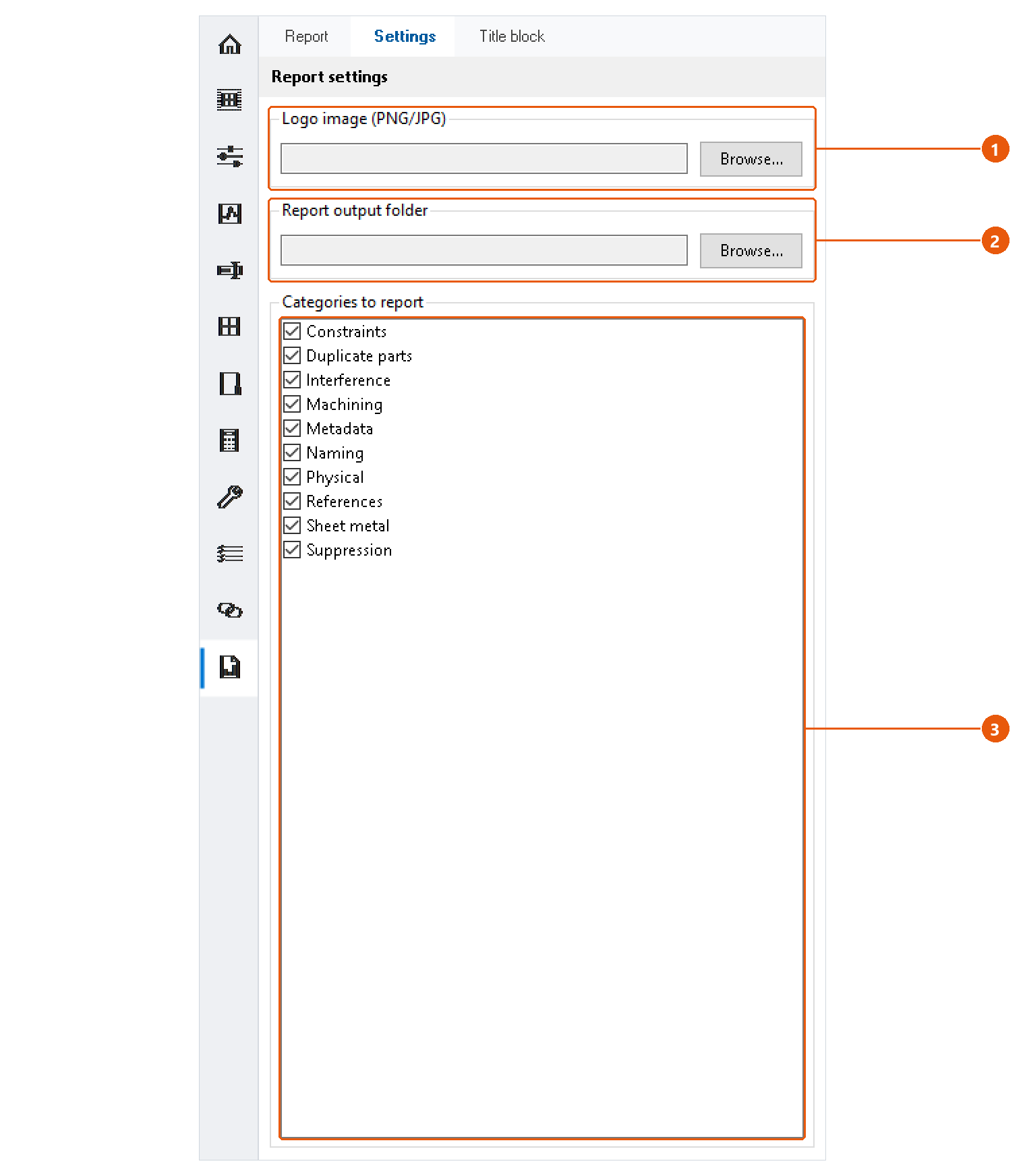
- Click the Settings tab.
- Choose a logo image for the report 1, PNG or JPG.
- Choose the folder the reports are written to 2.
- Untick the categories you do not want to check 3. There are ten: Constraints, Duplicate parts, Interference, Machining, Metadata, Naming, Physical, References, Sheet metal and Suppression.
Title block
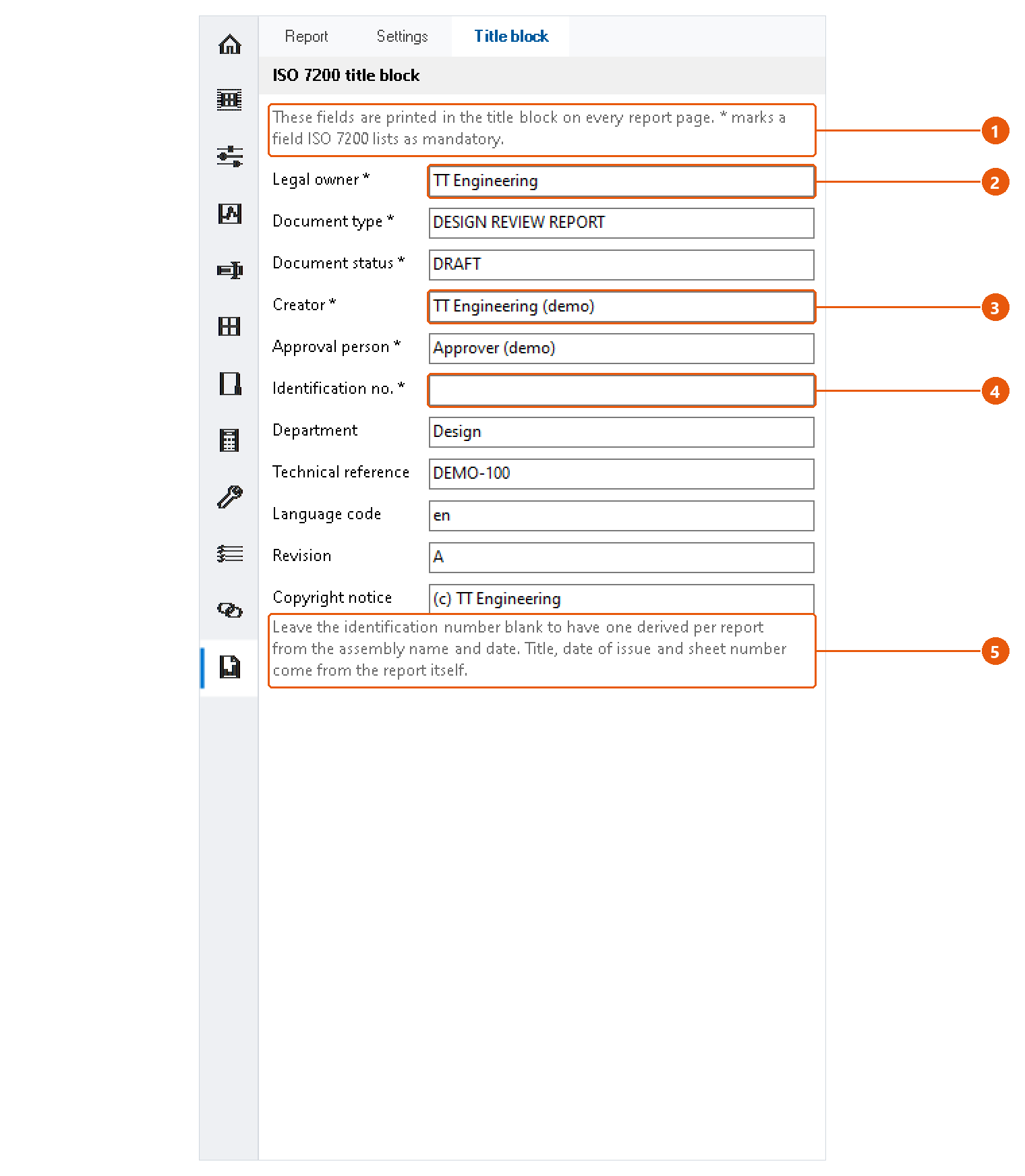
The title block fields 1 are printed on every page of every report, so they are entered once.
- Click the Title block tab.
- Fill in the fields, for example the legal owner 2 and the creator 3. A star marks the fields ISO 7200 lists as mandatory.
- Leave the identification number 4 blank to have one made for each report from the assembly name and the date.
Title, date of issue and sheet number come from the report itself 5.
Note:The creator starts as your Windows user name. Change it if the report should name someone else.