

Assembly Tools — checking an assembly
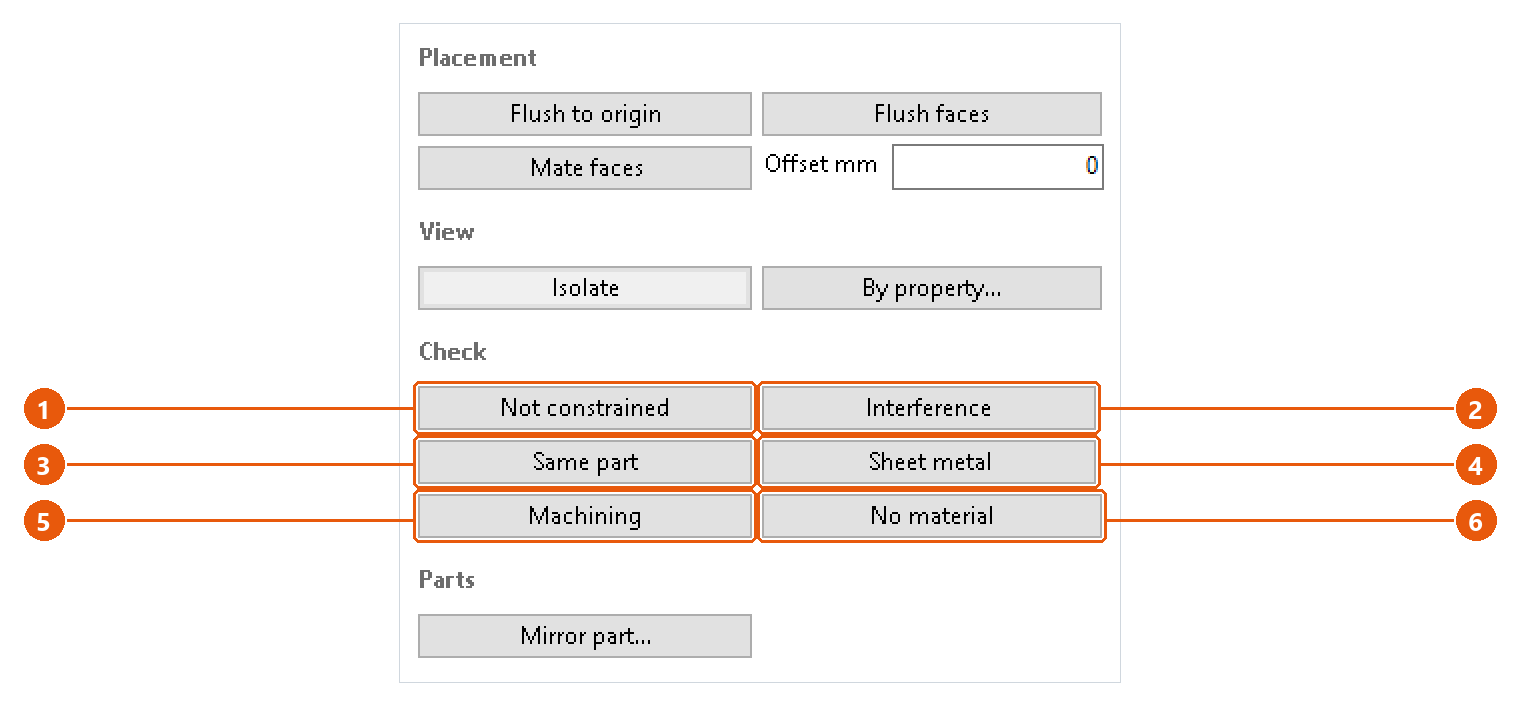
The Check section runs six checks over the open assembly. Each one lists what it found and isolates those components, so the next thing on screen is the parts that need attention.
Run a check
- Open the assembly and click Assembly Tools in the icon bar.
- Press a check button. A progress window shows while InvAmp walks the components. Cancelling it changes nothing: the checks only read.
- If nothing is found, the status line says so in green.
- Otherwise the findings open in a report, and the components concerned are isolated.
| Check | What it finds |
|---|---|
| Not constrained 1 | Components that can still move. Grounded components are not reported: being fixed in place is their constraint. |
| Interference 2 | Every overlapping pair in the assembly, with the volume of the overlap. |
| Same part 3 | Parts that look identical but are saved under different file names. The match uses volume, size and face and edge count: treat it as candidates, not proof. |
| Sheet metal 4 | Sheet metal parts with no flat pattern, and parts whose style thickness disagrees with the geometry. |
| Machining 5 | Parts that will be cut from solid, and how much of the billet each one throws away. |
| No material 6 | Parts with no material, with the template's placeholder material, or with a material that has no density. |
Read the report
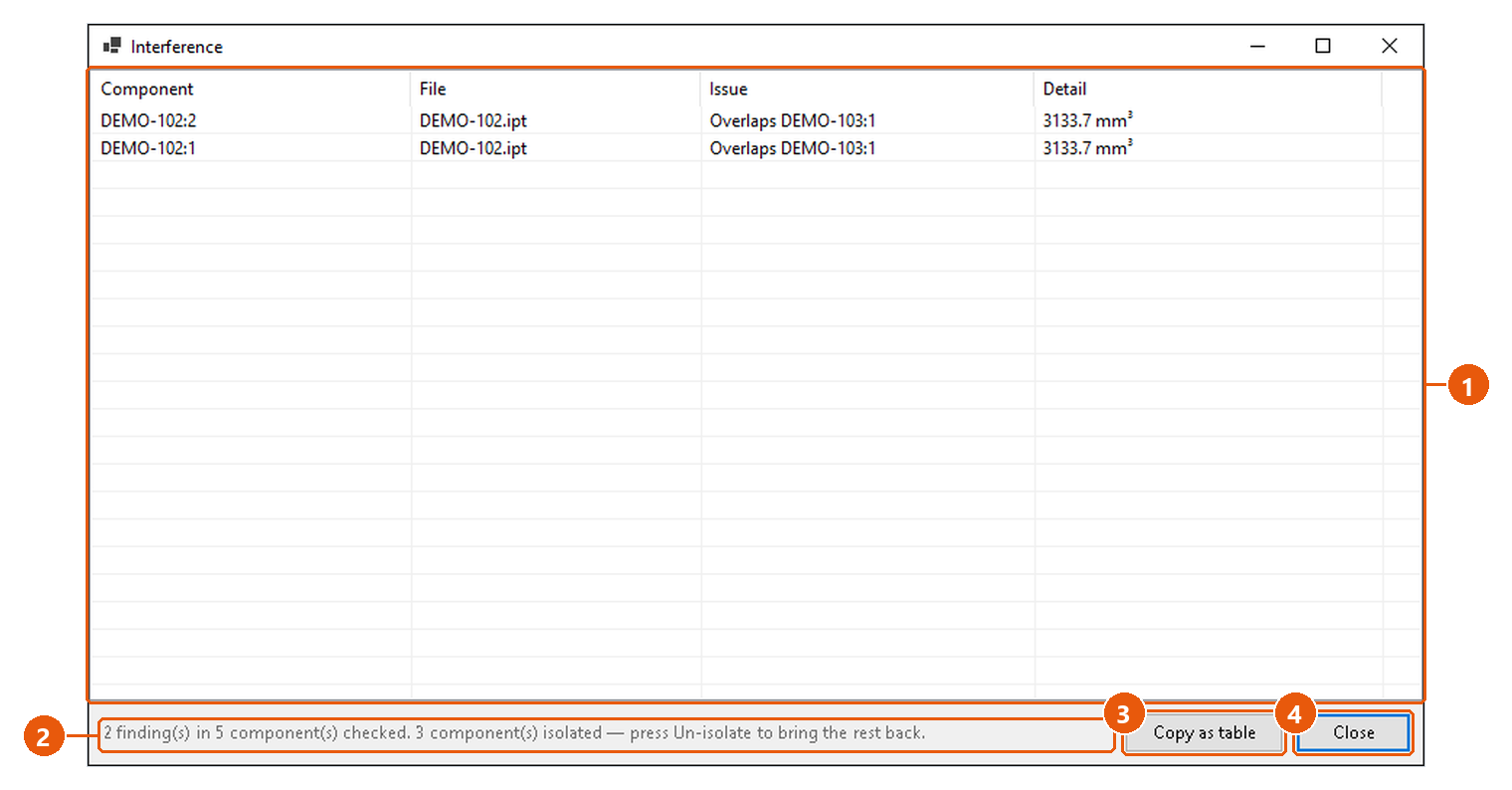
- Read the findings 1: the component, its file, the issue and a detail such as the overlap volume.
- Read the summary 2. It says how many components were checked and how many were isolated.
- Press Copy as table 3 to copy the findings. Paste them straight into a spreadsheet.
- Press Close 4.
When you are done with the findings, press the red Un-isolate button to show the rest of the assembly again.
What the checks skip
- Machining treats a part as machined when it is not sheet metal, not from Content Center and not purchased. Above the waste threshold, a part is flagged as worth a second look. The threshold is Machining waste % in Settings, 70 % by default. It is a prompt, not a verdict.
- No material skips Content Center and purchased parts. The placeholder names it looks for are Placeholder materials in Settings,
Generic, Defaultby default.
Tip:Run Sheet metal before you produce nesting drawings. A part with no flat pattern is skipped by nesting without a word.