

Assembly Tools — isolate
Isolate hides everything except the components you care about, and puts the assembly back exactly as it was afterwards.
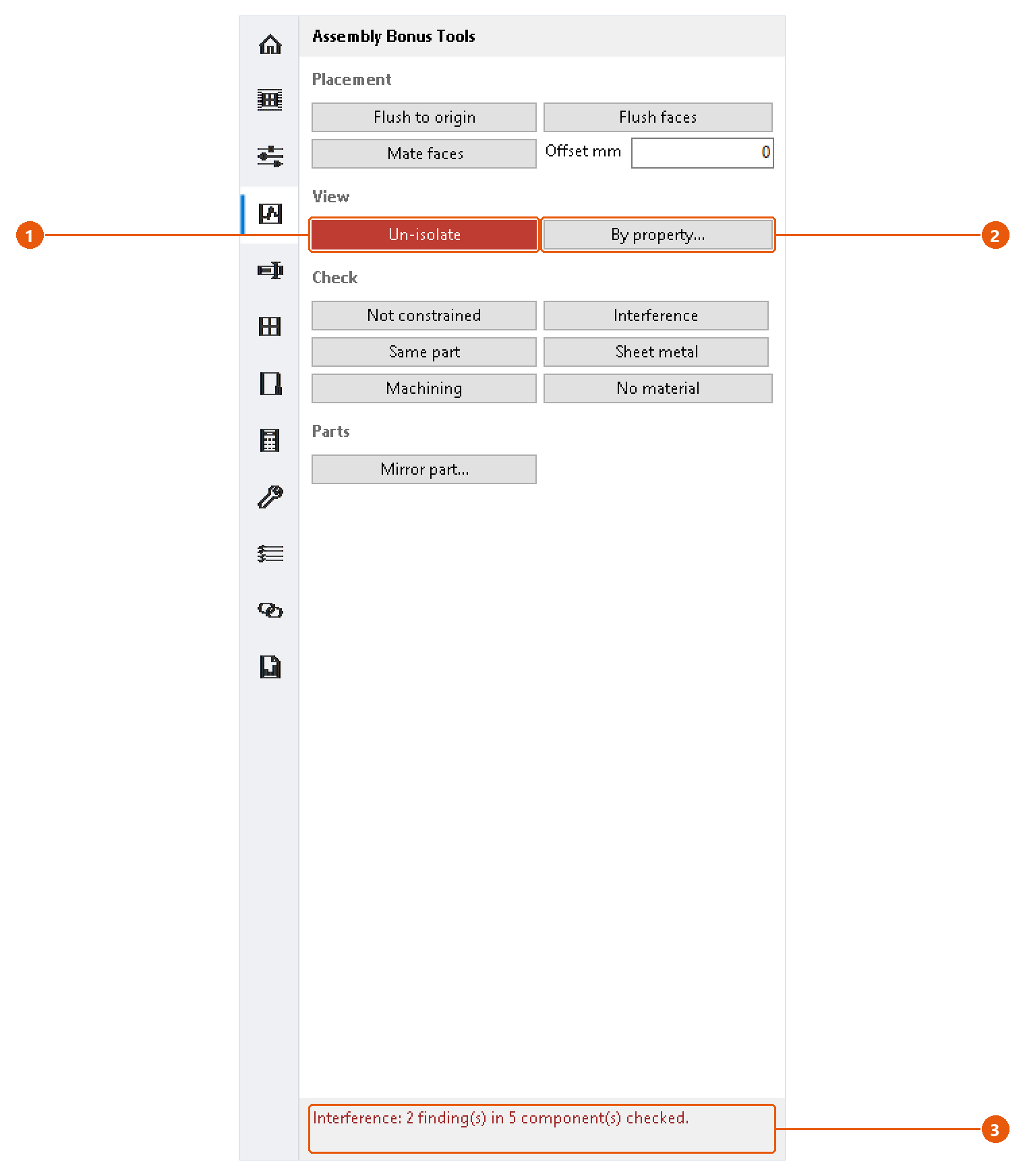
Isolate the selection
- Select one or more components. A part nested inside a subassembly is fine: the subassembly stays visible and its other parts are hidden.
- Press Isolate 1. Everything else is hidden.
- The button turns red and reads Un-isolate 1 while anything is hidden.
- Press Un-isolate to bring every component back.
"Exactly as it was" means exactly: a component that was already hidden before you isolated stays hidden afterwards.
InvAmp remembers the isolate on disk. If Inventor closes while the assembly is isolated, the red Un-isolate button is there the next time you open the page; its tooltip names the assembly. Open that assembly and press the button to put the components back. If the assembly file no longer exists, the memory is dropped.
Note:If the selection is already everything that is visible, nothing is hidden and the status line 3 says so.
Isolate by a property
Find components by an iProperty, for example every part whose part number contains BRK.
- Press By property... 2.
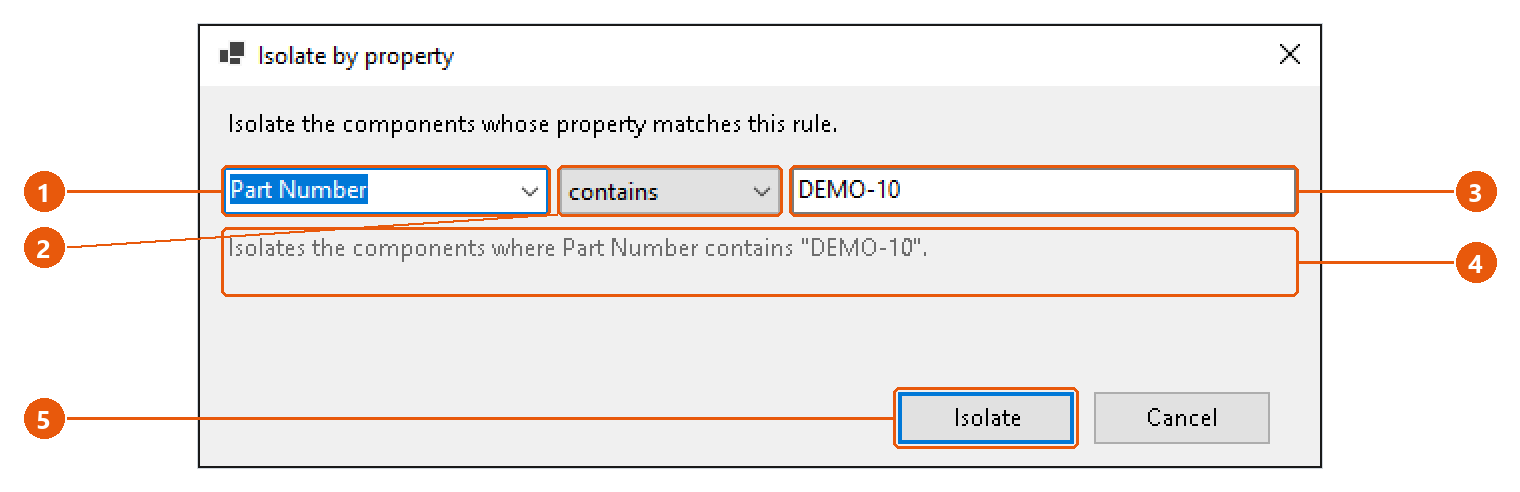
- Choose or type a property 1. The list offers the properties the open document carries; you can type any other name.
- Choose a condition 2: equals, contains, is not or is empty.
- Type the value 3. is empty needs no value.
- Read the rule back as a sentence 4.
- Press Isolate 5.
InvAmp lists the matching components and isolates them. The rule is remembered for next time, even when it matched nothing.
Tip:is empty also finds parts that do not carry the property at all. Use it to find the parts nobody filled in.