Work Mode — display profiles
A work profile is a named set of Inventor display settings: colour scheme, background, UI theme, projection, display quality, display mode and textures. Apply a profile to change all of them in one click.
Apply a profile
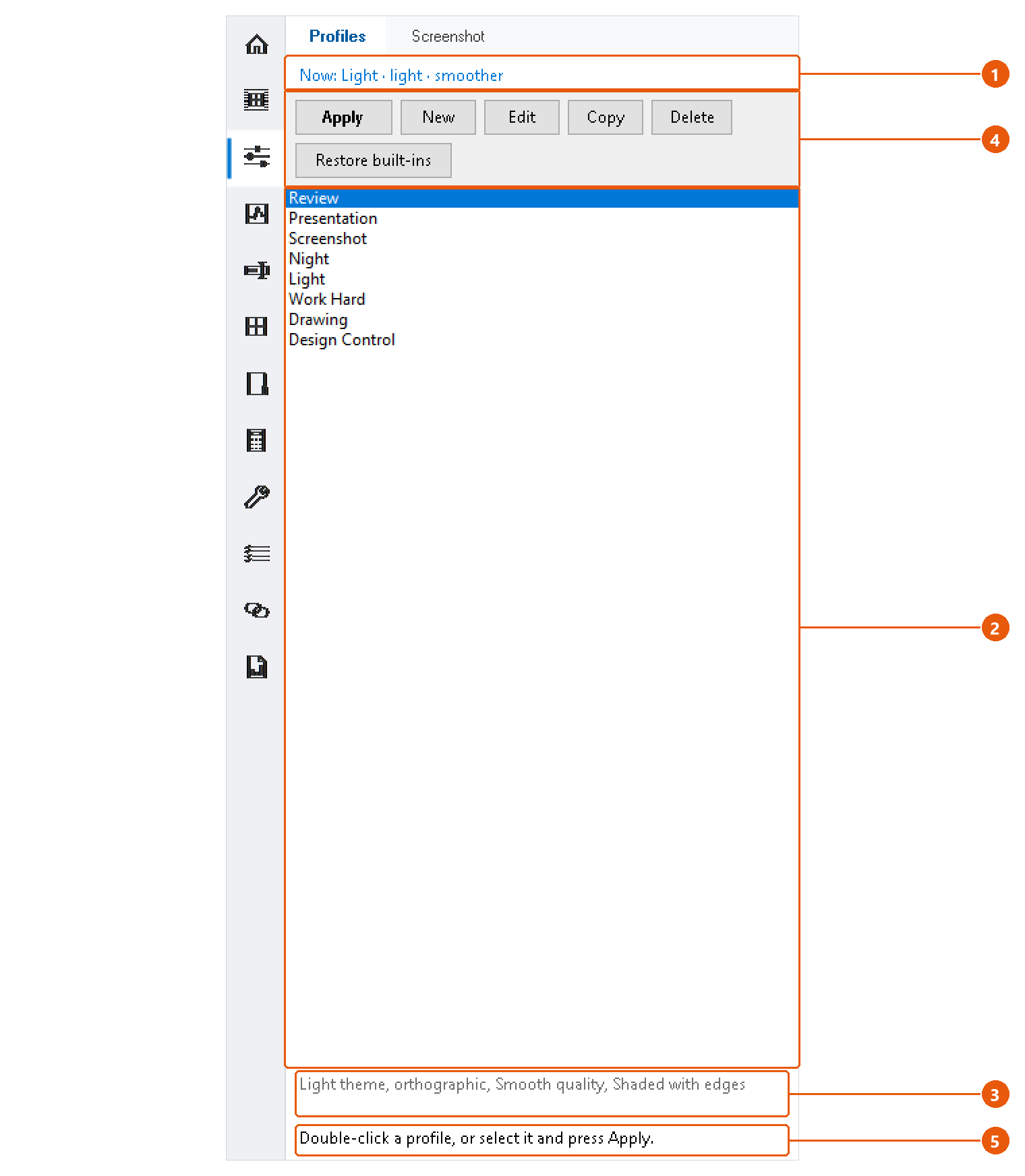
- Click Work Mode in the icon bar, then the Profiles tab.
- Read the line at the top 1. It shows what Inventor displays right now.
- Select a profile in the list 2. The text below the list 3 says what the profile changes.
- Press Apply in the button row 4, or double-click the profile.
- Read the status line 5. Green means every setting was applied. Orange means some could not be applied, and it says which.
Note:A profile changes only the settings it names. A setting left as (leave unchanged) keeps Inventor's current value. So a profile can switch only the theme and leave everything else alone.
Some settings do not apply everywhere. For example, a drawing has no display mode. The status line reports those instead of failing silently.
The built-in profiles
InvAmp comes with eight profiles: Review, Presentation, Screenshot, Night, Light, Work Hard, Drawing and Design Control. You can edit them, but you cannot delete them, so the list is never empty. Restore built-ins resets them to their defaults. Profiles you created are kept.
Create or change a profile
- New opens the profile editor with an empty profile.
- Edit opens the selected profile.
- Copy adds a copy named
<name> (copy). A copy is always your own profile, even when the original is built in. - Delete removes a profile you created, after asking.
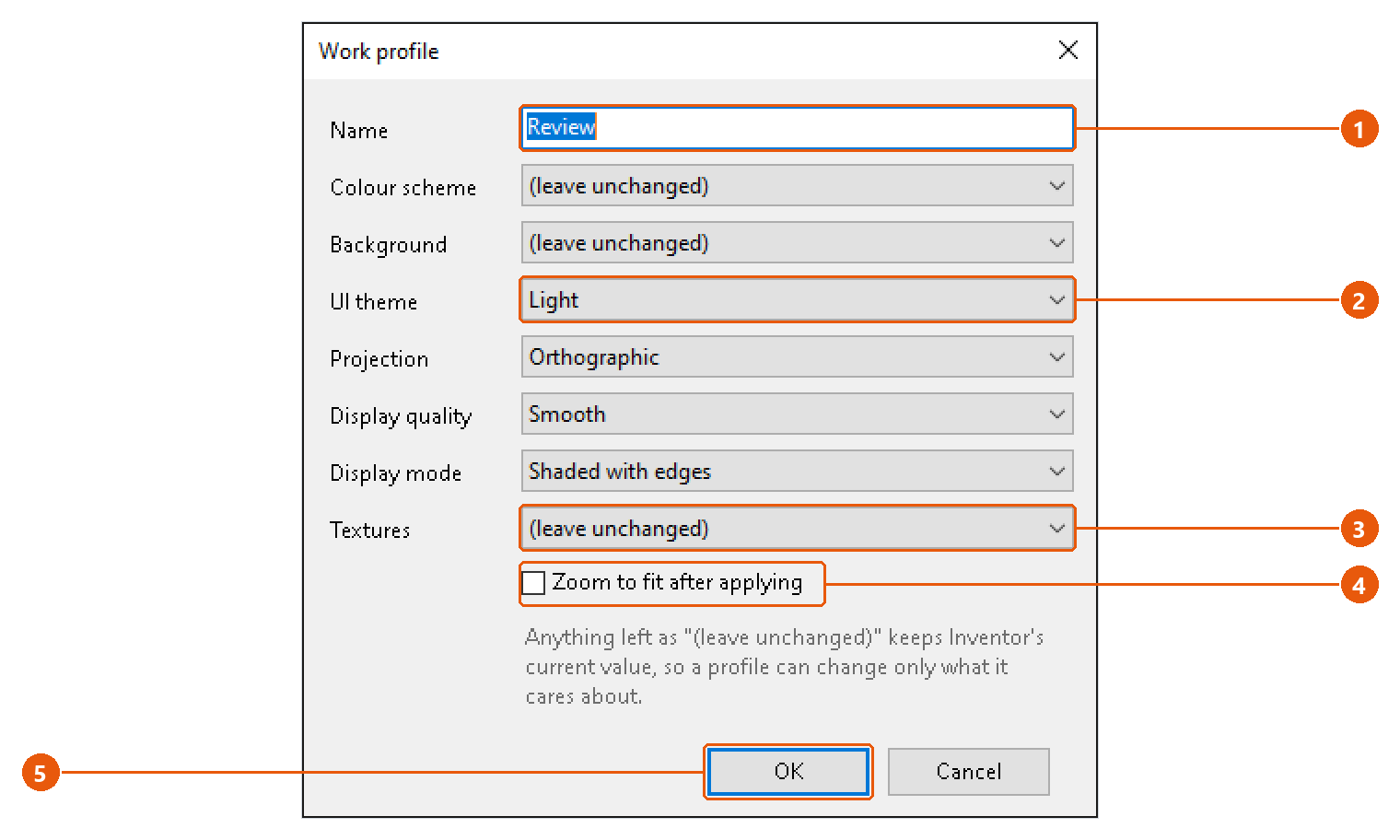
- Type a name 1.
- Pick a value for each setting you want the profile to change, for example the UI theme 2.
- Leave the others as (leave unchanged) 3.
- Tick Zoom to fit after applying 4 if the view should fit the model afterwards.
- Press OK 5.