

BOM — columns
The Columns tab decides what the BOM list shows and what the export contains. Both use the same columns in the same order.
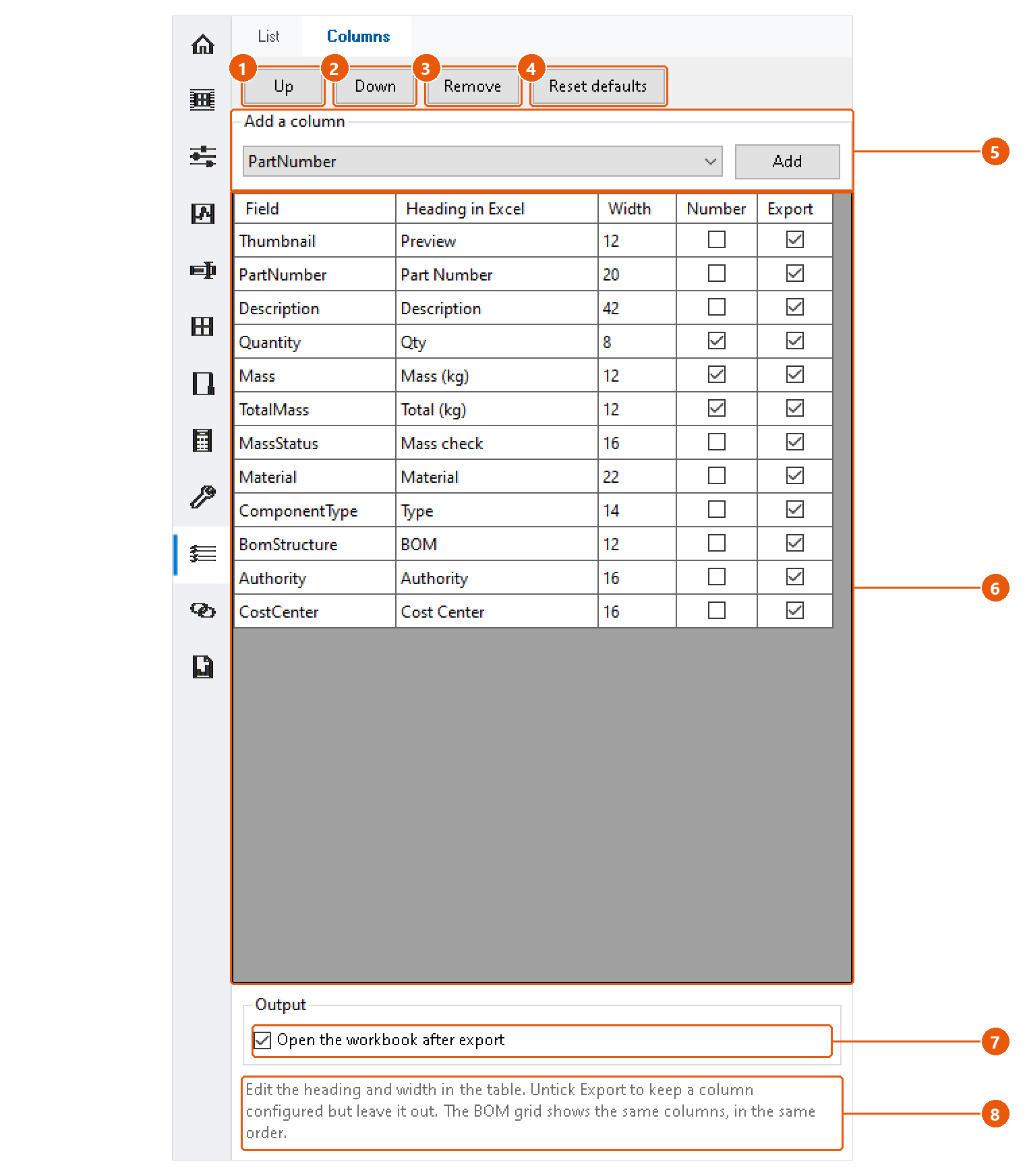
Change the columns
- Click BOM in the icon bar, then the Columns tab.
- Edit the table 6 directly:
| Column | Meaning |
|---|---|
| Field | The property the column shows. |
| Heading in Excel | The column heading in the workbook. |
| Width | The column width in the workbook. |
| Number | Writes the value as a number, so Excel can calculate with it. |
| Export | Untick to keep the column configured but leave it out. |
- To add a column, choose a field under Add a column 5 and press Add.
- Select a row and press Up 1 or Down 2 to move it, or Remove 3 to delete it.
- Reset defaults 4 brings back the built-in column set.
Changes are saved as you make them. Press Collect BOM on the List tab again to see them in the list.
Output
Tick Open the workbook after export 7 to open each exported workbook straight away.
The hint below the table 8 repeats how the table works.