

Selection
The Selection page shows the iProperties of whatever you select in Inventor, with a preview. You can edit the properties in place.
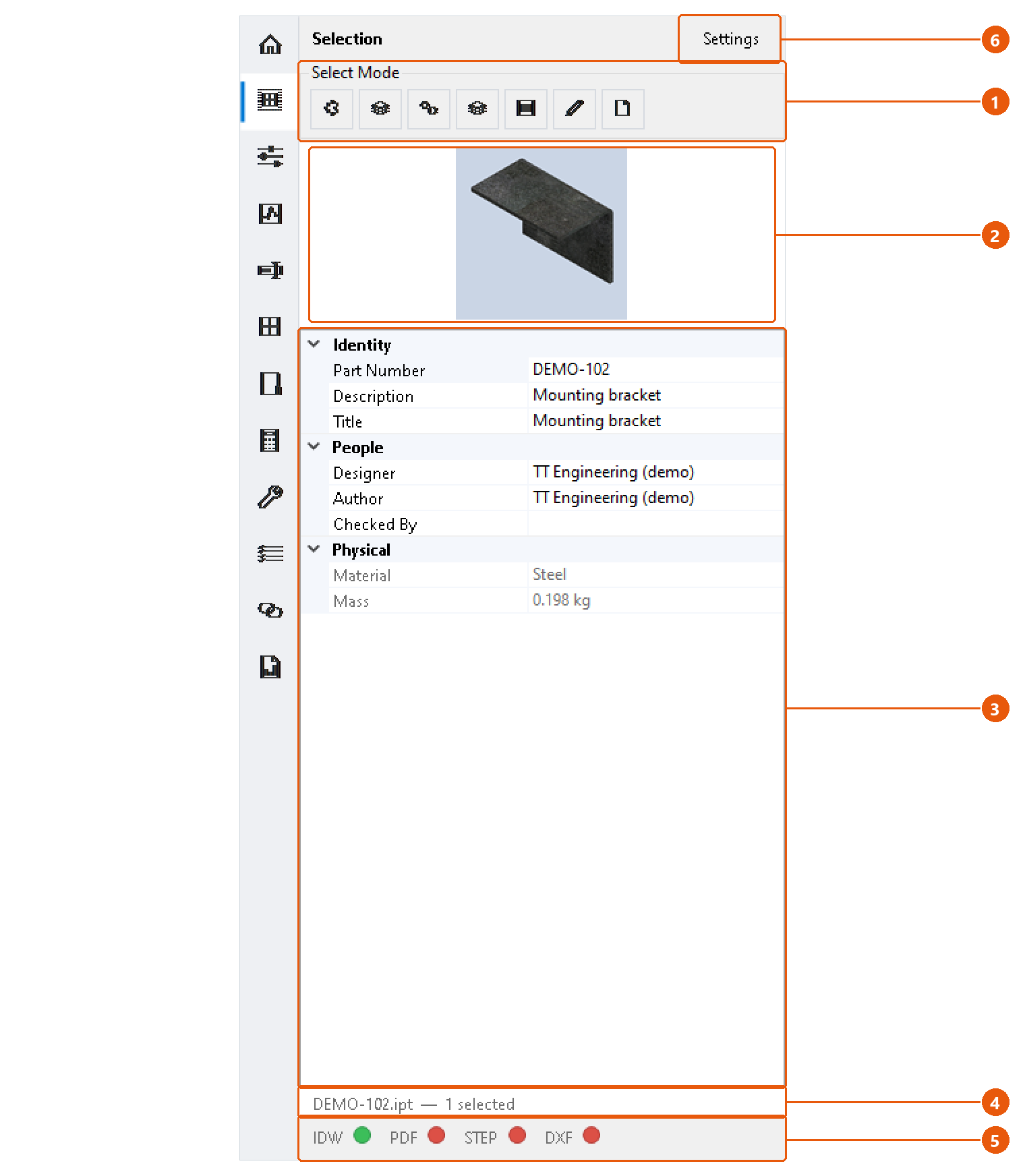
Inspect a component
- Open a part, assembly or drawing.
- Click Selection in the icon bar.
- Select a component in the graphics window or the browser. With nothing selected, the page shows the active document itself.
- Check the preview 2 and the property grid 3.
- Read the status line 4. It names the file and how many objects are selected.
The property grid 3 groups the properties into sections such as Identity, People and Physical. Greyed-out rows are read-only. Mass is shown in kilograms. A row reads (not available) when the document does not carry that property.
Edit a property
- Click the value in the property grid 3.
- Type the new value and press Enter.
The value is written into the document straight away. The document is not saved: save it in Inventor to keep the change.
Change what Inventor selects
The Select Mode buttons 1 switch Inventor's selection priority, for example Component Priority, Part Priority or Select Faces and Edges. Hover over a button to see its name. The buttons on offer depend on the active document.
If Inventor refuses a mode, for example while a command is running, the status line says so.
See which files exist beside the part
The file lamps 5 show whether a drawing (IDW or DWG), PDF, STEP or DXF file with the same name sits in the part's folder. Green means the file exists; red means it does not; grey means nothing is selected.
Note:The lamps are off by default. Turn them on in the settings 6.
Settings
Press Settings 6 to open the Selection panel settings.
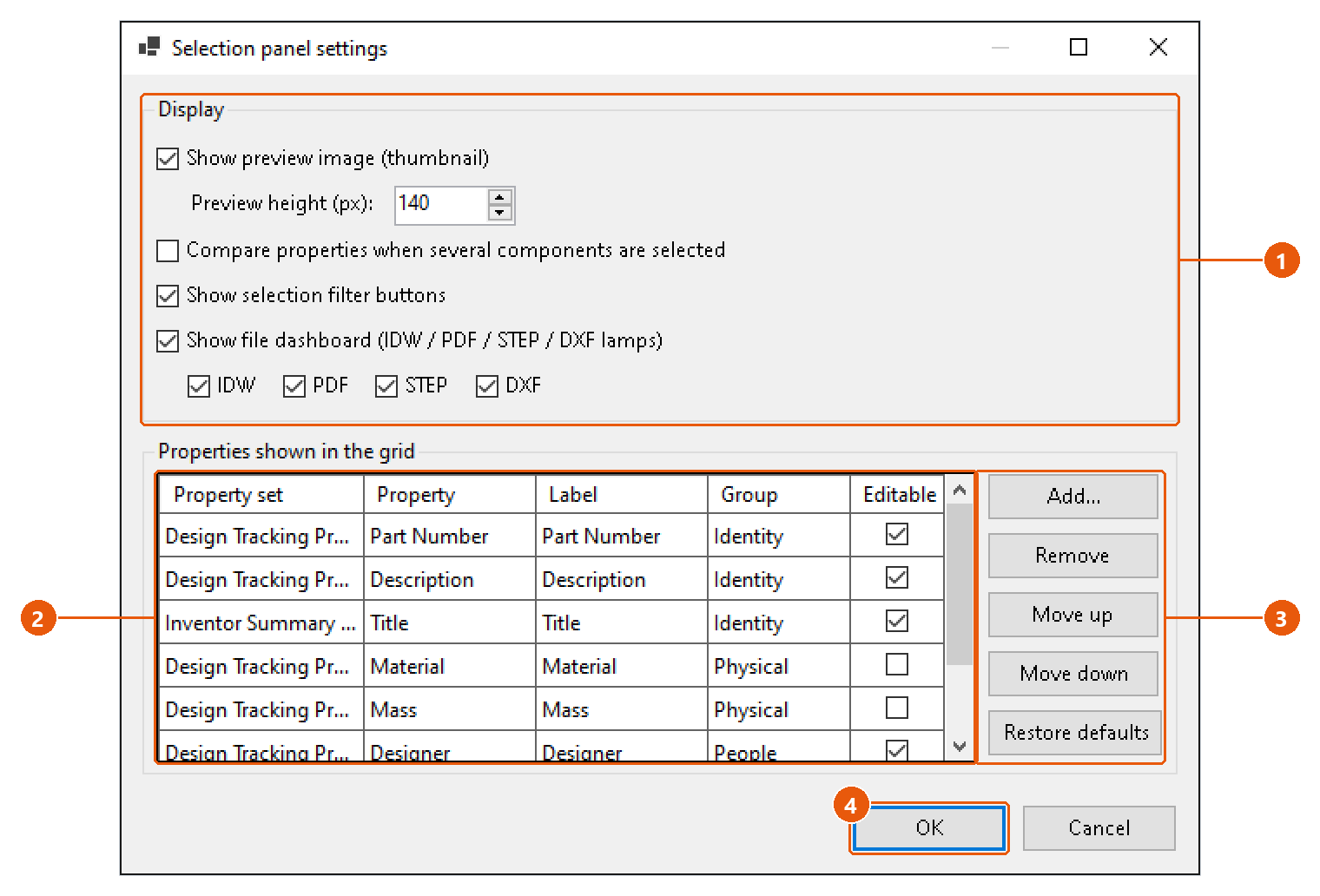
- Choose what the page shows 1: the preview and its height, the multi-selection comparison, the Select Mode buttons and the file lamps.
- Choose which properties appear in the grid 2. Tick Editable to allow editing a property.
- Add, remove or reorder properties with the buttons beside the grid 3. Restore defaults brings back the built-in list.
- Press OK 4.
Tip:Turn on Compare properties when several components are selected to see only the values that all selected components share.