Linked Params — parameters from a reference part
Linked Params copies parameters from a reference part into the document you are working on. It can also derive the reference part's geometry into the active part.
Connect a reference part
- Click Linked Params in the icon bar.
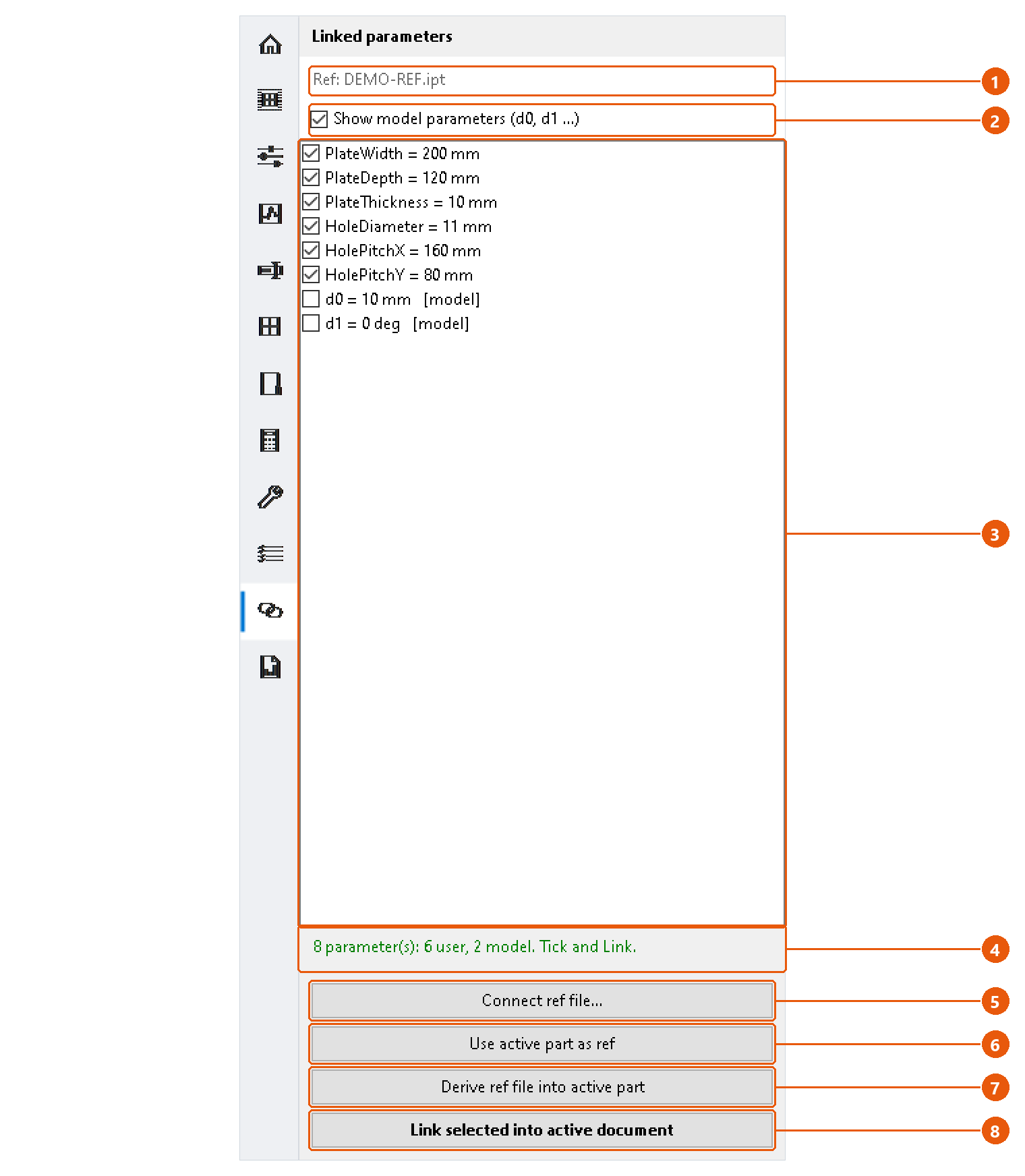
- Press Connect ref file... 5 and choose a part. Or open the reference part, make it active, and press Use active part as ref 6.
- Check the reference line 1. It names the connected file.
- Read the parameter list 3. User parameters are ticked; tick or untick them as needed.
- Tick Show model parameters 2 to list the model parameters (
d0,d1...) as well. They are never ticked for you.
The status line 4 says how many user and model parameters the reference holds.
Link parameters
- Make the document that should receive the parameters the active one.
- Press Link selected into active document 8.
The ticked parameters are created in the active document as reference parameters. Their values are copied at that moment; they do not follow later changes in the reference part. Parameters that already exist in the active document are skipped, and the status line says so.
Note:If the reference part is the active document, Link stops and asks you to switch to the document the parameters should go into.
Derive the geometry
Press Derive ref file into active part 7. The reference part's solid is brought into the active part as a derived component. Unlike linked parameters, it updates when the reference part changes.
Tip:An assembly can be connected for Derive, but its parameters cannot be listed. The status line says so.
To remove linked parameters again, use Utilities → Delete linked (reference) parameters.