

Blocks — sketch block library
Blocks keeps a library of sketch blocks in ordinary part files. Check a block out into the part you are working on, or send the blocks of the active part to a library file for later jobs.
Register library files
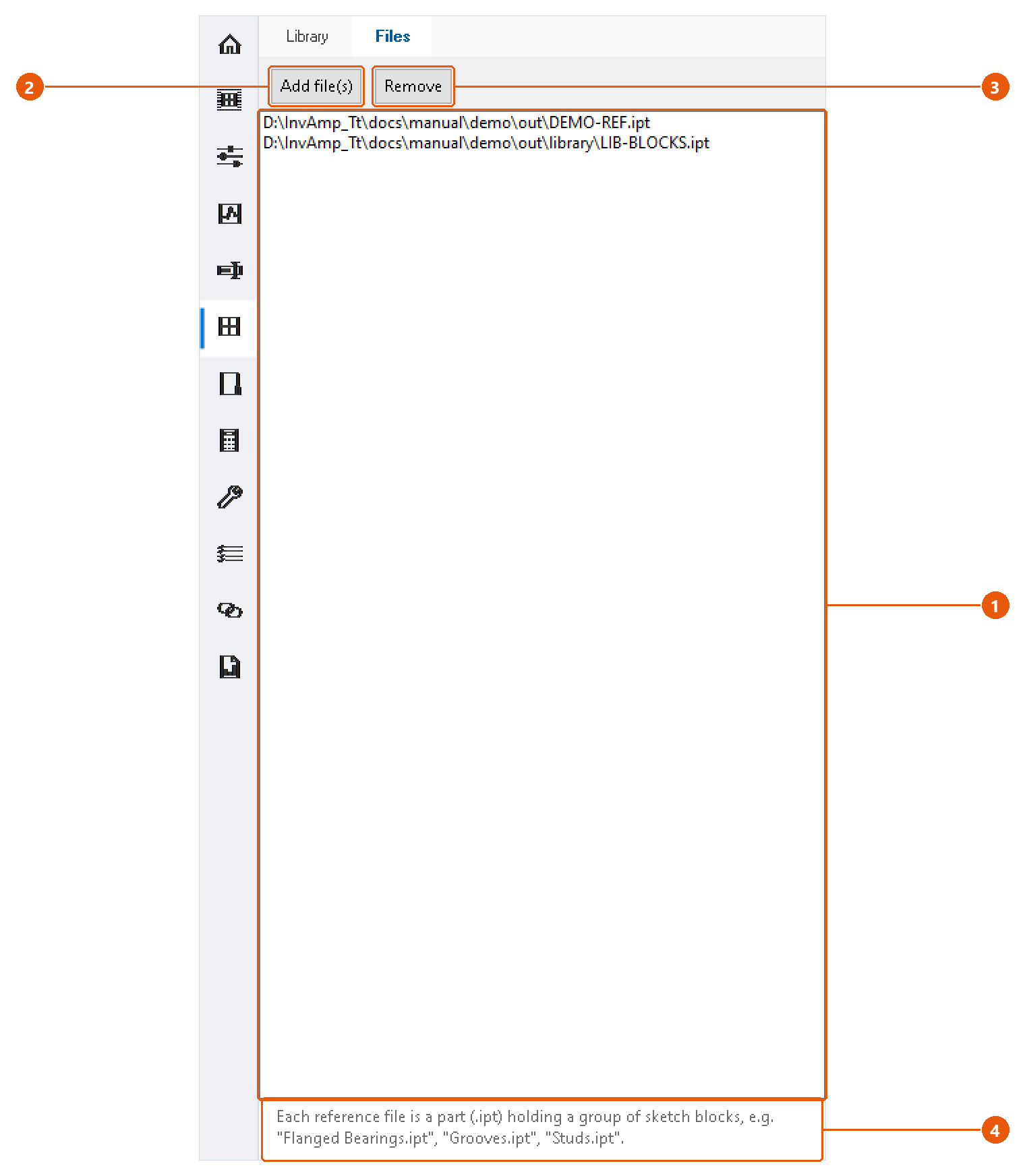
- Click Blocks in the icon bar, then the Files tab.
- Press Add file(s) 2 and choose one or more part files that hold sketch blocks.
- The files appear in the list 1. To drop one, select it and press Remove 3.
Each library file is an ordinary .ipt. Its sketch block definitions are the library 4.
Check out a block
- Open the part that should receive the block. It must be the active document.
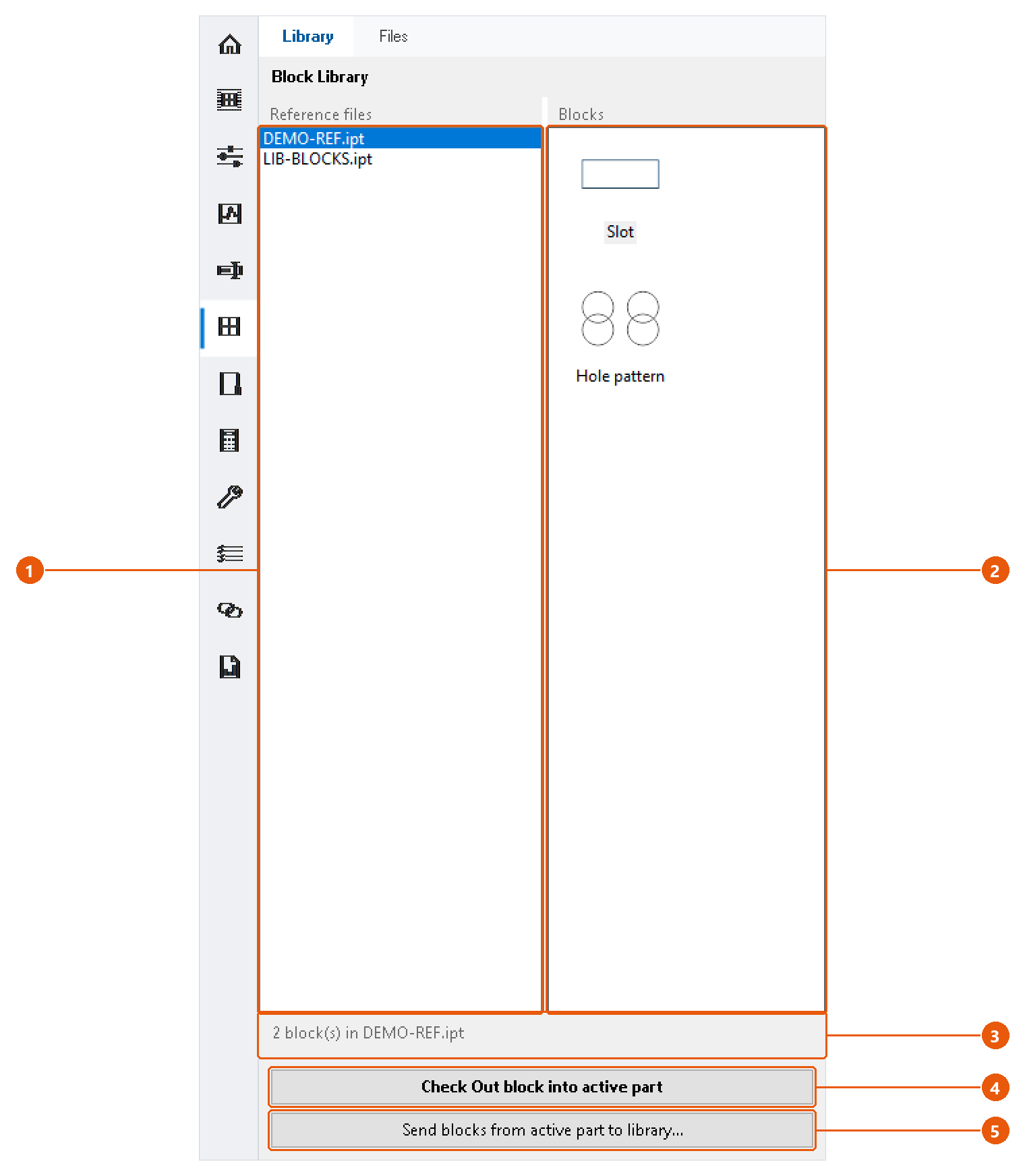
- Click Blocks in the icon bar, then the Library tab.
- Select a library file 1. Its blocks appear with a preview 2, and the status line 3 says how many there are.
- Select a block and press Check Out block into active part 4, or double-click the block.
The block is copied into the active part as an independent, editable definition. Changing it later does not change the library.
Send blocks to a library
- Open the part whose blocks you want to keep, and make it the active document.
- Press Send blocks from active part to library... 5.
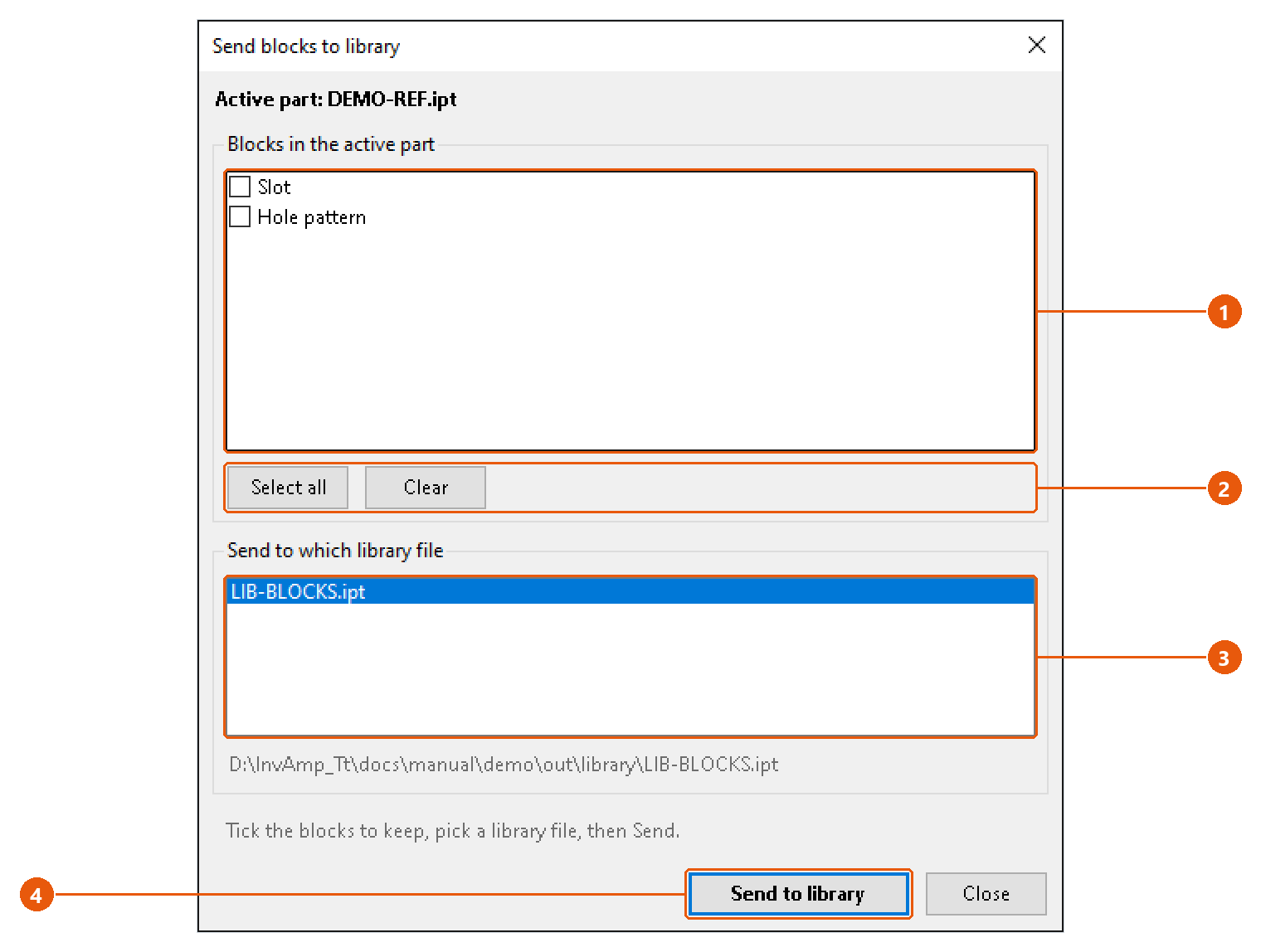
- Tick the blocks to send 1. Select all and Clear 2 tick or untick them all.
- Choose the library file to write into 3. The line below the list shows its full path. The active part itself is not offered.
- Press Send to library 4.
InvAmp writes the blocks into the library file and saves it. The result is reported for each block.