

Workspace — reuse components from your folders
Workspace browses your own component folders and takes parts and assemblies into the current job: placed, derived or copied.
Register folders
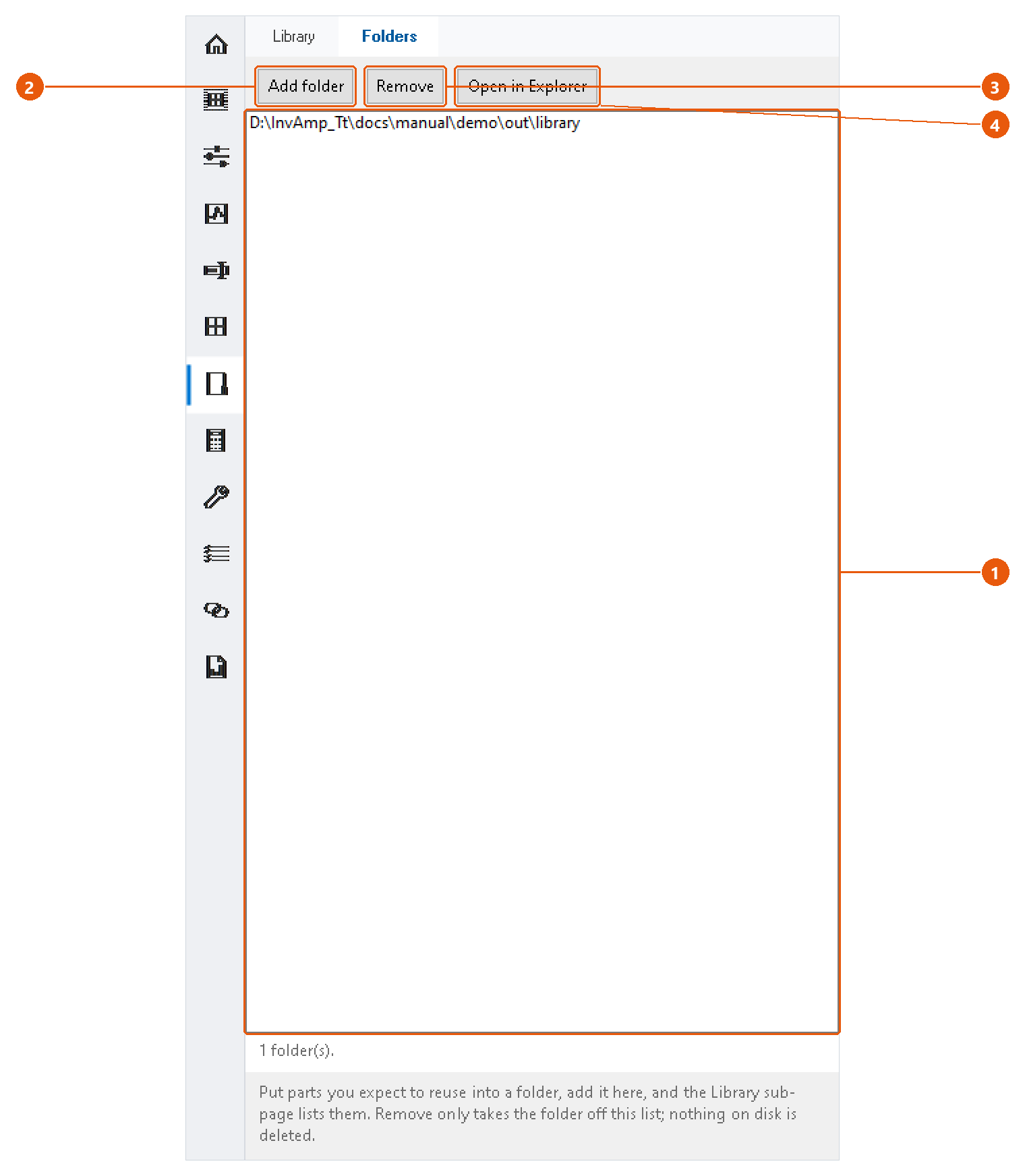
- Click Workspace in the icon bar, then the Folders tab.
- Press Add folder 2 and choose a folder that holds reusable components.
- The folders appear in the list 1. Remove 3 drops a folder from the list; it deletes nothing on disk. Open in Explorer 4 shows the folder in Windows.
Find a component
- Open the assembly or part you are working on.
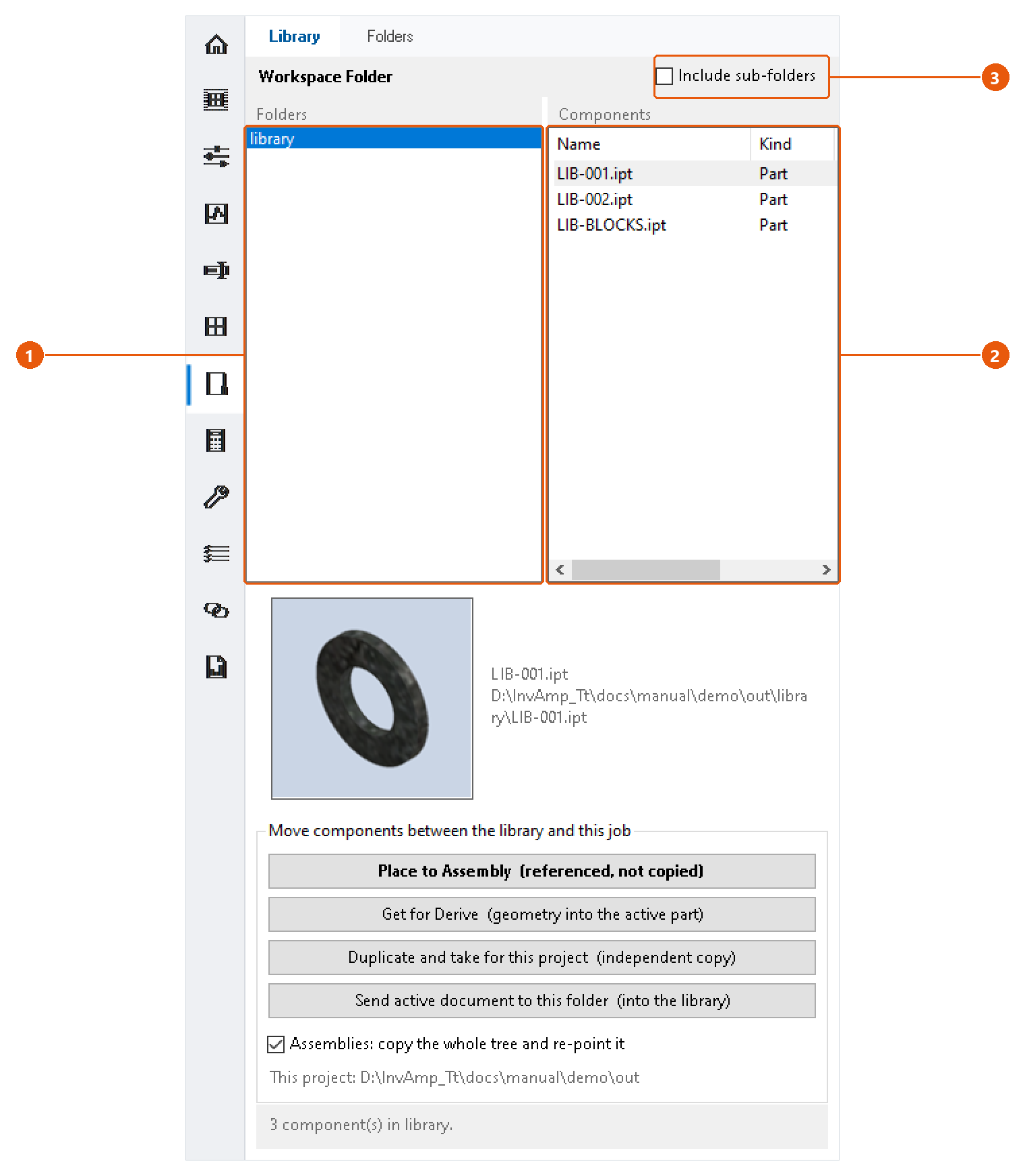
- Click Workspace in the icon bar, then the Library tab.
- Select a folder 1. Its parts and assemblies appear on the right 2. Tick Include sub-folders 3 to list the sub-folders' components too.
- Select one or more components. Ctrl-click to select several.
Take it into the job
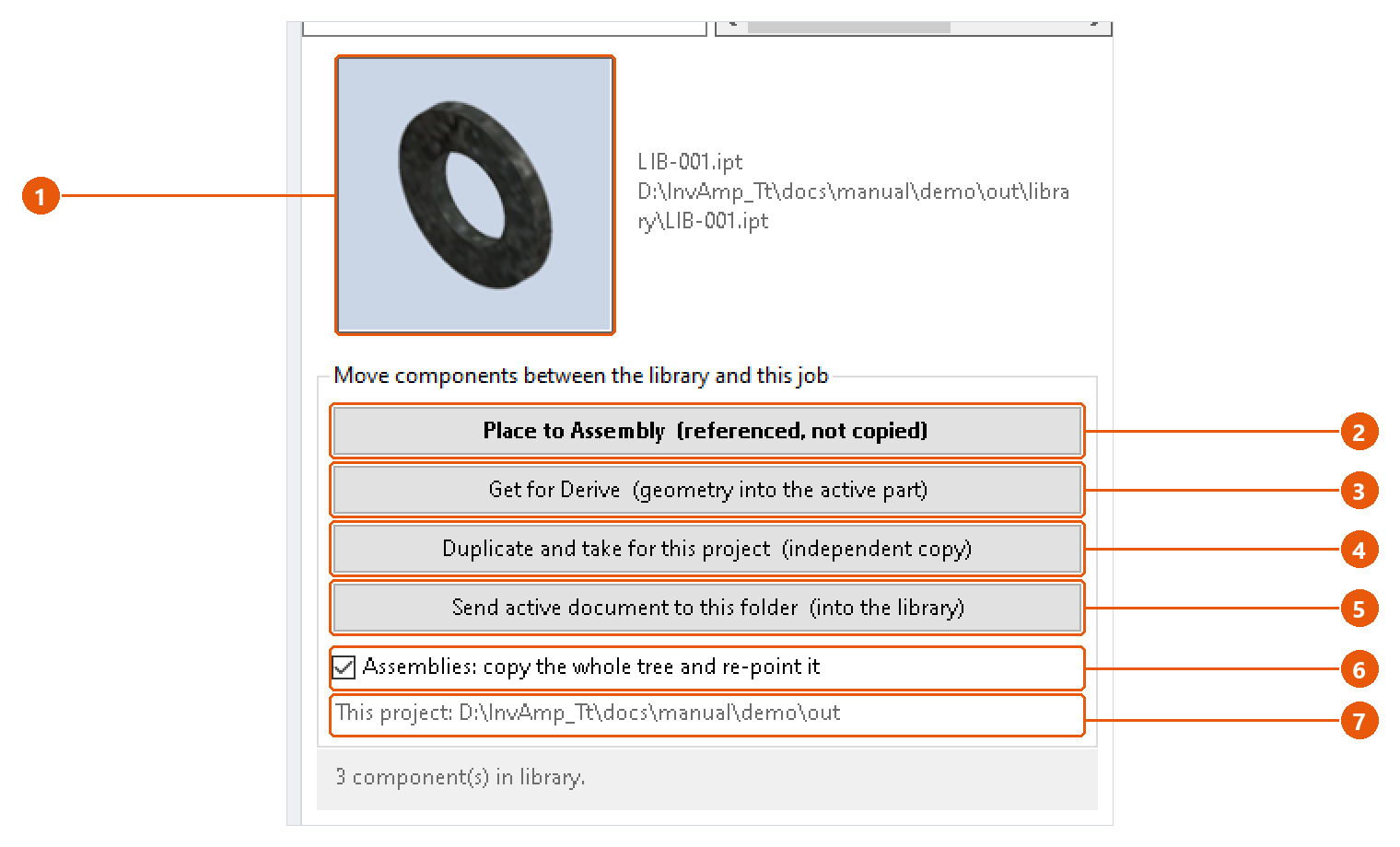
The selected component's preview and path appear at the top 1. Then choose an action:
| Action | Result |
|---|---|
| Place to Assembly 2 | Places the library file itself into the active assembly. It is referenced, not copied. Double-clicking a component does the same. |
| Get for Derive 3 | Derives the component's geometry into the active part. |
| Duplicate and take for this project 4 | Copies the component into this project's folder under a name you type, one component at a time. The copy is independent of the library. |
For assemblies, tick Assemblies: copy the whole tree and re-point it 6 to copy every part the assembly uses as well.
The project folder 7 is the folder of the active document. Save the document once if InvAmp says it cannot work it out.
Add the active document to the library
- Select the library folder on the left.
- Press Send active document to this folder 5.
The document must be a saved part or assembly with no unsaved changes, because the library copy is made from the file on disk.