

Opening the panel and finding your way
Show or hide the panel

- Open the Tools tab of the ribbon.
- Press InvAmp 1 in the InvAmp panel, at the right-hand end of the tab. The button shows the panel, and hides it again on the next press.
The button is on the Tools tab of the part, assembly, drawing and presentation ribbons, and on the ribbon Inventor shows when no document is open.
The panel docks on the right the first time. Drag its title to dock it on another edge, or leave it floating. Inventor remembers where you put it.
The panel collapsed
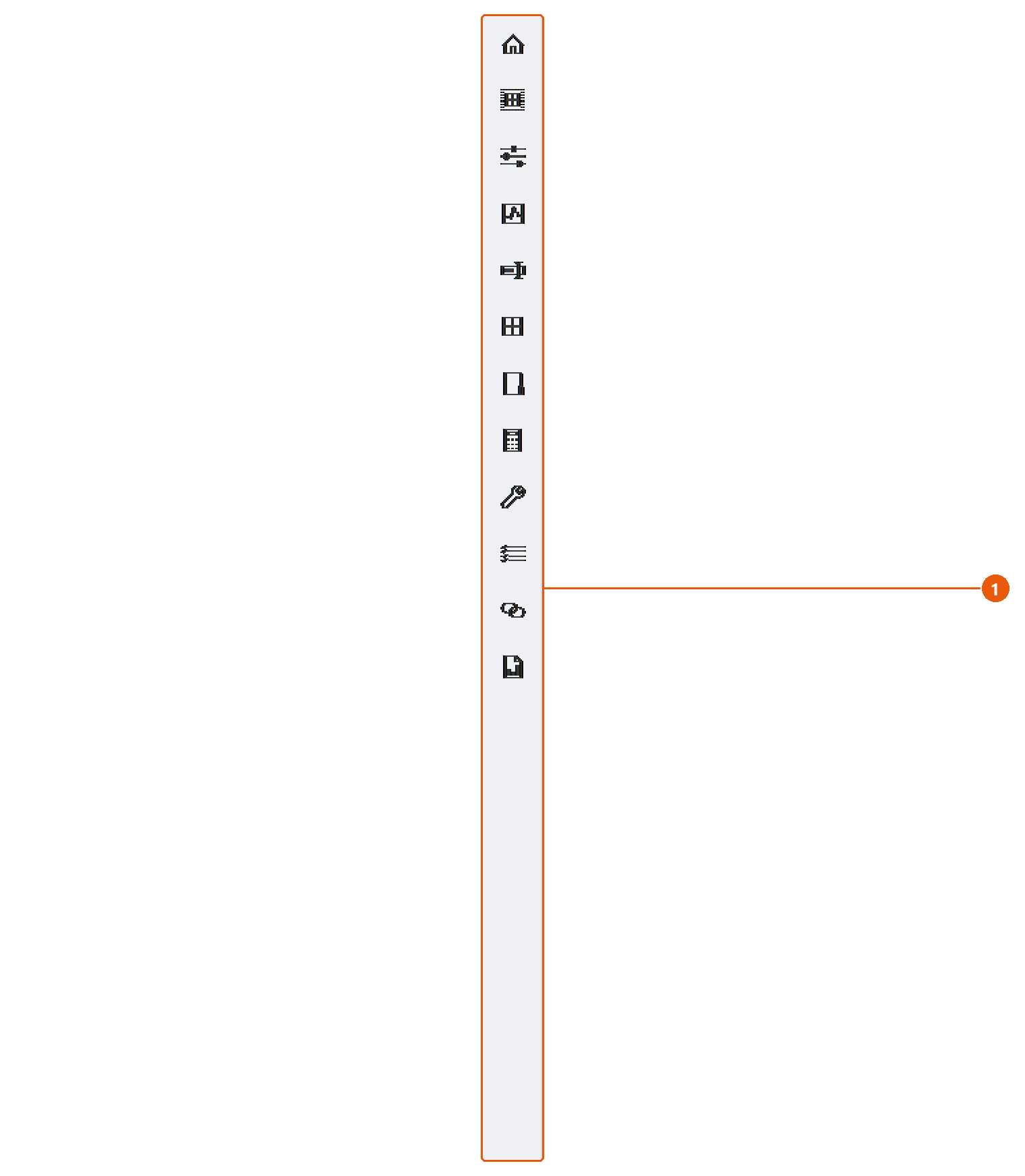
When no page is open, the panel shrinks to the icon bar 1. It takes very little room, and it has no close button.
A page open
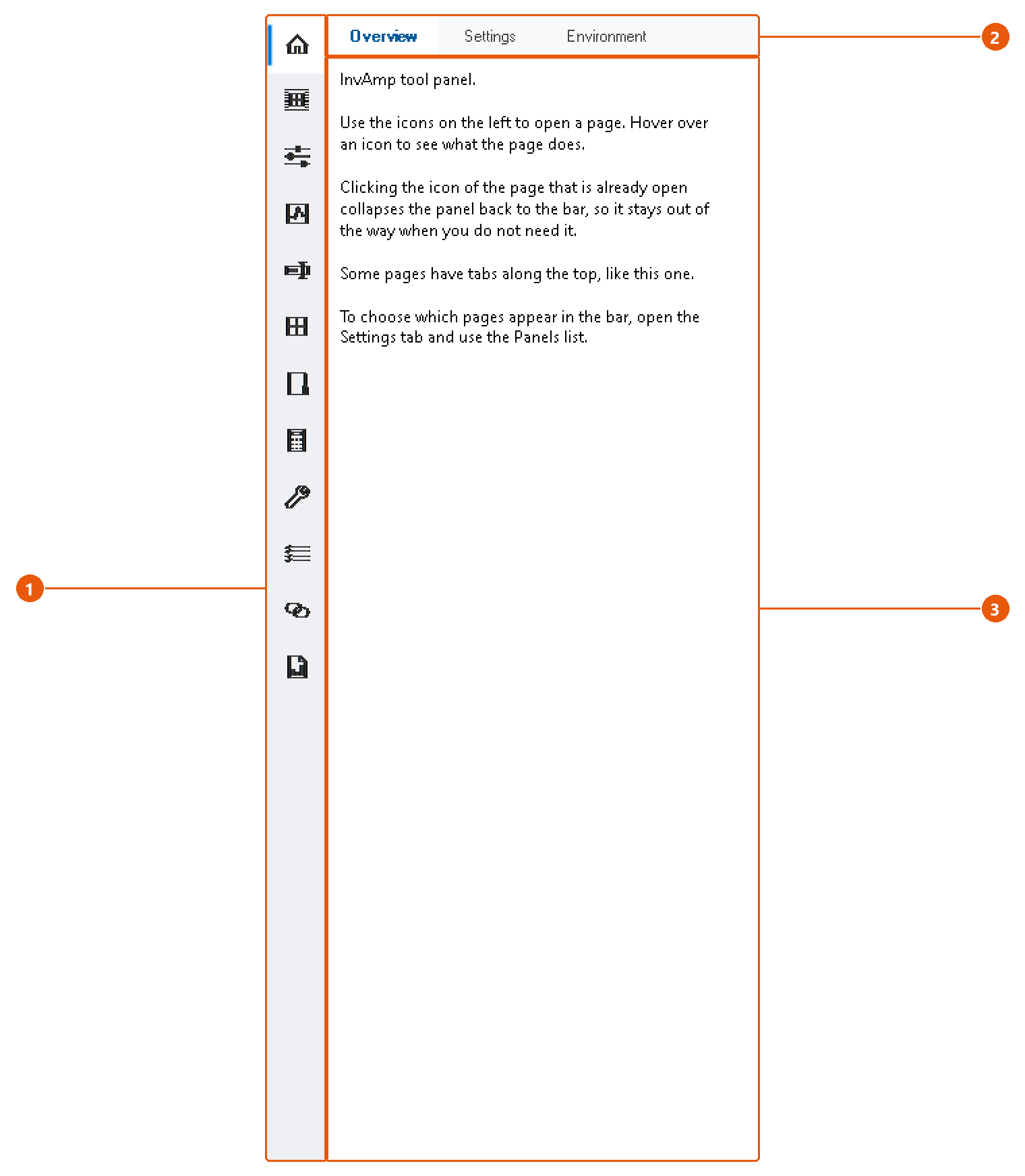
- Click an icon in the icon bar 1. The panel widens and shows that page.
- If the page has sub-pages, pick one from the tabs along the top 2.
- Work in the page itself 3.
- Click the icon of the open page again to collapse the panel back to the bar.
Tip:Hover over an icon to see what its page does.
The panel remembers the width you drag it to and uses it the next time a page opens. Each page also keeps its own state while Inventor runs: switch to another page and back, and your entries are still there.
Most pages report the result of an action in a status line at their bottom edge.